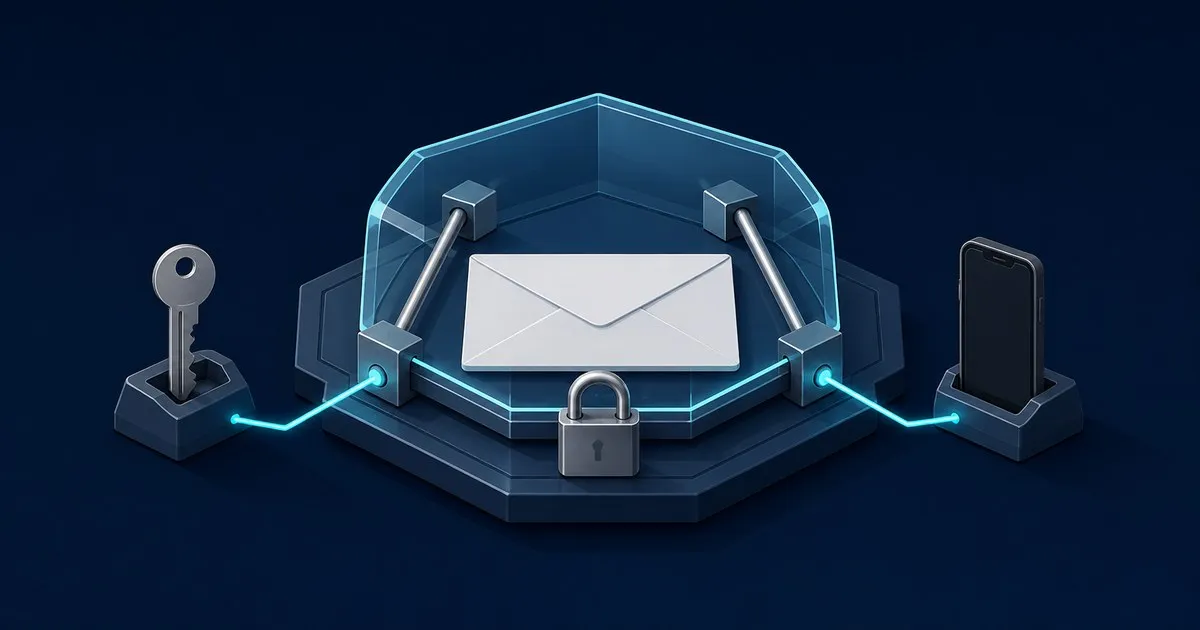
A secure mail setup is ordinary email with several protections working together: a login that resists account takeover, encrypted connections, sound recovery settings, and end-to-end encryption (E2EE) when both parties can use it. For most people, the best first move is to harden the current inbox. Add a privacy-focused mailbox when keeping message content from the provider is part of your threat model.
Threat model: who this secure mail guide is for
The EFF recommends deciding what you need to protect and from whom before choosing a tool. This guide serves three common situations:
-
An ex, relative, or scammer may know your password. Prioritize account hardening: a unique password, FIDO2 security key or passkey where supported, reviewed recovery methods, and revoked old sessions. If your ex has your iCloud password and it can reset the new mailbox, switching providers does not close the door.
-
Your ISP or someone on public Wi-Fi might observe traffic. Start with HTTPS for the app and TLS for mail transport. E2EE keeps readable content from intermediate providers, but not every header or the fact that two addresses communicated.
-
Retailers, newsletters, and data brokers link activity to one address. Compartmentalize: keep a primary address for important accounts and use aliases or a separate signup address elsewhere. This makes future leaks and unwanted mail easier to isolate.
Skip this guide if you suspect spyware. A compromised device can expose a message before encryption or after decryption; clean-device help comes first.
What “secure” means in email
Four layers are easy to confuse:
- TLS protects a message in transit. It helps against passive network snooping, but mail providers can still process a readable copy. Gmail’s security indicator distinguishes standard TLS, S/MIME, and unencrypted mail.
- Encryption at rest protects stored data. With “zero-access” storage, the provider says it lacks the key to read stored message bodies. This does not make every outgoing message E2EE.
- E2EE protects content from sender to recipient. IETF guidance says PGP/MIME and S/MIME can provide confidentiality, authentication, and integrity, while warning that client behavior matters (RFC 9787).
- Strong authentication protects the account. Encryption does little if someone logs in as you. CISA identifies FIDO/WebAuthn as the widely available phishing-resistant option in its MFA guidance. An authenticator app is a practical fallback; SMS is less resistant to phishing and SIM swapping.
This distinction matters with Proton Mail. According to Proton’s documentation, a vendor-sourced capability claim, mail between Proton addresses is E2EE. Mail sent to another provider uses TLS by default, not E2EE, unless you add password protection or configure PGP.
A 10-minute setup path
These steps use Proton Mail’s installation-free web app. Menu labels and screenshot cues come from the linked vendor documentation; mobile placement can differ.
-
Minutes 0–2: choose the right inbox. If account takeover is the concern, secure the current mailbox first so it cannot reset other accounts. If provider access is the concern, create an encrypted mailbox and move only sensitive conversations.
-
Minutes 2–4: set a unique password. Generate it in a password manager and never reuse it. A separate password prevents an old retailer breach from becoming an email login.
-
Minutes 4–6: enable MFA. In Proton’s web settings, open Account and password, then Two-factor authentication. Prefer a FIDO2/U2F security key; use TOTP if needed. Proton’s security-key guide shows these screens. Store recovery codes away from the phone.
-
Minutes 6–8: review recovery and sessions. Remove recovery details you no longer control, then revoke unfamiliar devices. Proton explains where to review sessions in its login-alert documentation.
-
Minutes 8–10: separate identities and learn the lock icon. Reserve the new address for important accounts; use aliases or another address for shopping. For sensitive mail to a non-Proton recipient, select the External encryption lock, set a message password, and share it through a different channel. Proton’s illustrated instructions show the lock turning blue and warn that later replies need encryption enabled again.
Do not migrate every account at once. Move important recovery addresses first, monitor the old inbox, and confirm each change. For coverage of credential theft and email-provider incidents, see sister publication Tech Sentinel.
Verify it worked
Run these checks yourself before sending anything sensitive:
- Sign out, sign back in, and confirm that the security key or TOTP code is required. Then verify that the recovery codes are available offline.
- Open the account security page. Confirm every active session is yours and that recovery details do not point to an old shared account.
- Send a harmless test to another Proton address and inspect the encryption lock. Proton documents a blue lock for E2EE. Do not assume a normal message to Gmail or Outlook is E2EE.
- Send a password-protected test to a trusted non-Proton address. Share the password by phone or an E2EE messenger. Confirm the unlock page is on
proton.mebefore entering it. - If you use Gmail, open a received message, expand the recipient details, and check the listed security type. A TLS result verifies transport encryption for that hop, not end-to-end protection.
The catch: content privacy is not metadata privacy
E2EE can protect the body and attachments while leaving routing metadata exposed. The EFF’s communication guide notes that encrypted systems can reveal who communicated and when. Proton says subject lines are not end-to-end encrypted, so use a neutral subject such as “Documents” instead of a diagnosis or account number.
Jurisdiction is not a force field. Proton’s transparency report says valid Swiss legal orders can compel disclosure of certain user information, although Proton says it cannot decrypt encrypted mail content. That is a more useful statement than treating “Swiss privacy” as a promise that no records can ever be produced.
Secure email cannot stop a recipient from copying a message or protect an unlocked or compromised device; EFF treats endpoint security as part of the communication threat model. It does not block phishing or malware on its own.
Set it up for your provider
The ten-minute path above is provider-agnostic. When you are ready to configure a specific secure email inbox, these guides pick up where it leaves off:
- How to set up Proton Mail covers account creation, the day-one privacy settings, 2FA and recovery, Bridge for desktop clients, and a custom domain.
- Tuta setup guide covers the German provider that encrypts subject lines by default, from signup to the tradeoffs it makes in return.
- Encrypt email in Outlook covers S/MIME and Microsoft 365 message encryption if you are staying inside Outlook.
- Thunderbird PGP setup covers end-to-end encryption in a desktop client, for correspondents who will also set up keys.
- SPF, DKIM, and DMARC for a custom domain covers the three DNS records that get your mail delivered and stop anyone spoofing your domain.
Related across the network
- Free Encrypted Email Without a Phone Number (2026) — privatemailguide.com
- How to Set Up Email Aliases With SimpleLogin or addy.io — privatemailguide.com
- How to Encrypt Email in Gmail: TLS, S/MIME, and End-to-End — privatemailguide.com
- How to Set Up PGP Email Encryption: A Step-by-Step Guide — privatemailguide.com


